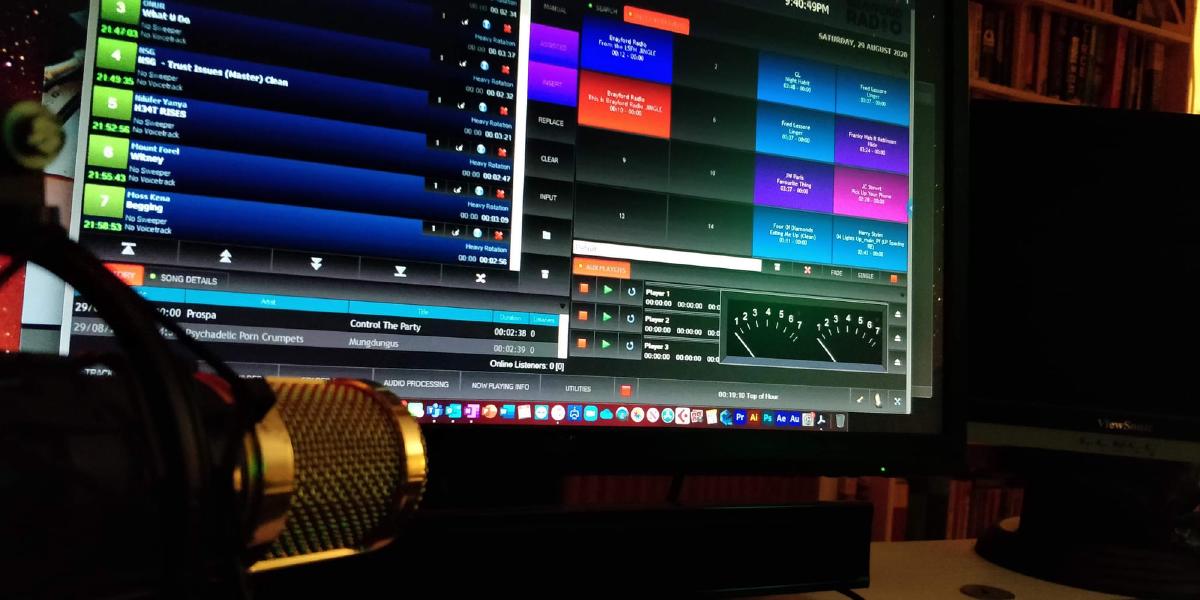
This is a lookback at my time managing the student radio station at the University of Lincoln. It combines and slightly re-writes a series of many posts from my old blog of the time, surrounding topics such as remote broadcasting to live music sessions for the (sadly no longer existing) Brayford Radio of the Lincoln School of Film and Media.
BrayfordAnywhere - The first iteration. (Playout in a web browser using Windows.) #
Hi! If you read my last post you’d know that I’ve been experimenting with ways people can seamlessly broadcast without the need of a permanent studio – perhaps if you have presenters at home that can’t get in; your studio(s) are shut due to a pandemic, or maybe you’re just looking for a cool solution for outside broadcasting on the road? 🚗
I’m designing this system with small/student radio stations in mind, there are problems with it; but from tests, it’s been a very useable platform to work with. I’m also going to refer to Discord as a VoIP (Voice-over-IP) client, even though I’m designing concepts with Discord just to test, and in reality a permanent broadcast specific audio over IP based soloution would be ideal .
The concept was the ability to run a fully-featured playout system in a web browser, and use a service like Discord or Cleanfeed (which also happens to run in a web browser) for two way high-quality audio. Sounds simple, right? However, it has several problems I’ve tried to tackle from the start, such as:
-
👮🏻♂️Security – Remote sessions are (especially lately) becoming very widely used, so many software developers of said software’s and protocols are; and have been working hard on improving all-around security in common applications, but you still don’t want to be throwing out direct IP addresses and login credentials on the open internet. An RDP Gateway server might be a good shout to at least put a bit of shade on the real identity of the remote PC for security. Windows Server has this sorted, but if you can’t/don’t run Windows server; a nice freebie called ‘Guacamole’ by the Apache team can be run on as small as a Raspberry Pi (and via a Docker environment) to help keep you protected. I would also heavily recommend running this all behind a VPN server such as WireGuard or OpenVPN. You can even manage and assign RemoteApp and desktop access to a custom user database via Apache Guacamole, which is very handy for delegating access. Other steps like Windows Group Policy tweaking I would recommend to block as much of the rest of the OS in question. I’m not going to list everything I’ve done for security here out of interest to keep my own systems secure; but here are some tips:
- Strong, multi-factor authentication on RDP gateway accounts.
- Disabling all local network resources and access on the remote machine(s).
- Frequent password changes
- Network Proxies and VPN routes.
These were some of the other challenges presented to me from the get go:
- 🎧Internal audio routing, processing and encoding.
- 🔥Latency and poor network connections.
- 🎙A multitude of ‘non-broadcast’ quality microphones, and inconsistent audio levels.
The main pieces of software I’m using for this ‘demo/proof of concept’ is Google Remote Desktop Services, RadioDJ (stop judging because of the name, it’s a good piece of software!) and VB-Audio’s Voicemeeter and Virtual Audio Cables.
The ‘Remote Playout Machine’ is headless, and could even be virtualized. Discord is running, hidden away and permanently connected to the aforementioned ‘BROADCAST’ Channel.
Here’s our virtual mixer,
The above pictured Voicemeeter Banana is the donationware variant; although I believe everything we need could be done on the free version. (but don’t quote me on that.)
On my current working proof-of-concept version; this mixer isn’t touched and all the audio levels are automatic – however, maybe with touchscreens you could implement this software to allow users to mix more thoroughly their output. (or even better, implement some kind of remote USB MIDI implementation to use physical control surfaces.)
Here I’ve sent the MAIN Broadcast output of the playout software (you could do this with other software, of course) to the AUX Input, which comes up on that fader I’ve named ‘Playout.’ Hardware out A1 is a virtual audio cable to the input of discord (server-side) so that you can monitor what you’re doing on the discord client-side. This playout system has a built-in encoder which features a compressor, multiband-EQ, stereo enhancer and AGC (Automatic gain control), however as an alternative or to get more control over your output, you could route another virtual audio cable from A2 to another broadcast encoder of your choice. OR, use a real interface output to a physical encoder or different machine input. With this method, you can make use of Voicemeeters built-in patch channel ‘VAIO’ to add your own third-party virtual or physical compressors, broadcast processors etc. Here’s one I tried out called ‘MBProcess’:
You can also see the VoiceMeeter options where I’ve patched in MBProcess at the bottom under channel 1 PATCH INSERT. Because the output of the audio chain ends up in this VAIO Fader (I’ve named it Broadcast Return), we can send that to A2 where our encoder would live. (The encoder being the master output to your radio station streaming server/antenna.) We could then use the A1 button on this VAIO fader to act as a kind of ‘Broadcast Listen’ to quickly send the processed output to your VoIP service like Discord for monitoring. A virtual cable between the server-side VoIP output and VoiceMeeter’s channel one input can be made to effectively get a fader for the ‘Host/Presenter Mic’, nice! Technically, you could go even further and experiment with voice effects, EQ and compression right within VoiceMeeter at that point, but I chose a simpler method for now.
LibreTime - my new favorite playout management software. #
From the official GitHub page:
‘LibreTime makes it easy to run your own online or terrestrial radio station. It is a community managed fork of the AirTime project. It is managed by a friendly inclusive community of stations from around the globe that use, document and improves LibreTime.’ (https://github.com/LibreTime)
I have often described Libretime playout as like a telephone switchboard for radio stations. The software is designed to run on a very lightweight Linux server, of which I’m only running a very light Ubuntu 18.04 server with only 1vCore and 2GB RAM, making it incredibly cheap to run.
The software runs by effectively hosting three different Icecast audio points on one server. An Icecast server is designed for streaming multimedia to many users across the internet, effectively the home of the audio for your radio station. It is the place the listeners connect to when tuning in online to your radio station. (unless you use a proxy relay or CDN, which you should by the way.)
Here’s a diagram of how I have Libretime setup:
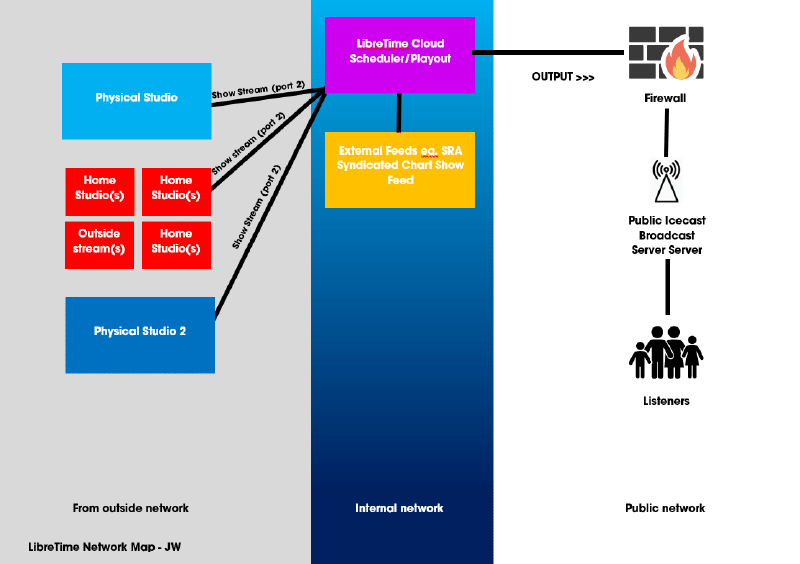
We only use two of the Icecast points, for audio ingest/input and built-in scheduled output only.
Libretime has music and voice link scheduling built in, so for our pre-recorded shows (of which we have more than I’d like of at the minute, due to our team having to work from home) – our presenters and producers can log in and set-up, manage and watch their own shows go out, pretty neat.
Furthermore, multiple accounts for different presenters or ‘DJ’s’ can be set up to give permissions for different people to schedule and connect in for live playout at specified times.
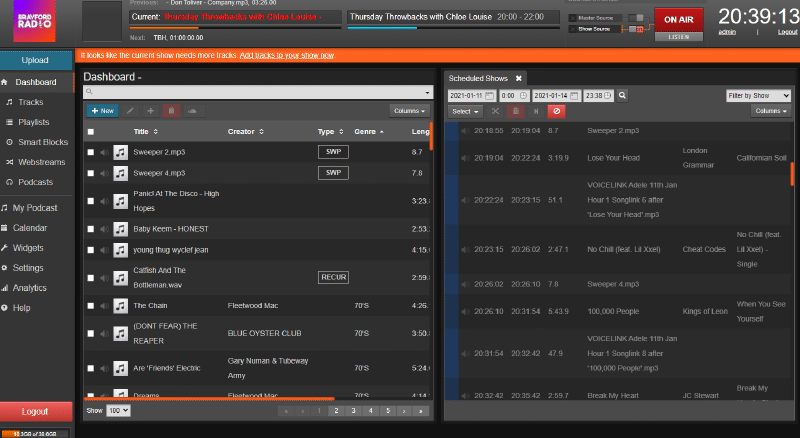
This is extremely useful as before, our presenters would have to send us or upload their show content to an online share, and one of the staff team would have to remotely login via TeamViewer and drop the content into Myriad. We don’t, and probably will never have, a big enough Teamviewer license to be able to give it out to all our team.
Ice, ice, cast… #
Icecast works by creating ‘mountpoints’ on which audio can transverse through. For example, an endpoint address may look something like ’live.brayfordradio.org.uk/studiostream.m3u’.
In relation to our setup, I have one icecast point as the built-in playout of Libretime, one for the ‘MASTER Audio’ input and one for the ‘SHOW Audio’ input. All of these do slightly different things. Each different mount point has a different address and port number to connect to from any external audio encoders.
Usually, the MASTER input is the main studio feed for the radio station, and the SHOW feed is fed from external sources, such as people broadcasting at home. When an authenticated (more on this later) stream is connected to the SHOW feed, Libretime automatically switches the MAIN station output over.
Automating Stream Switchovers (the big selling point for me…): #
Using the SHOW mount point, Libretime can be told (by scheduling within the control panel) which presenters should be allowed to connect and where from, ensuring not only that the correct people can only log in at the correct times, but also that the studio playout machine gets kicked off when the time’s right. Brayford Radio only has access to the LSFM studio during the night, so we can’t keep the studio at the University connected during the day or we could end up broadcasting all kinds of things…
By using ‘Libretime Authentication’ under the live stream input section, it matches the stream input servers login credentials (the details you input into the broadcast encoder software) to the DJ or Presenters login used to access Libretime on the internet.
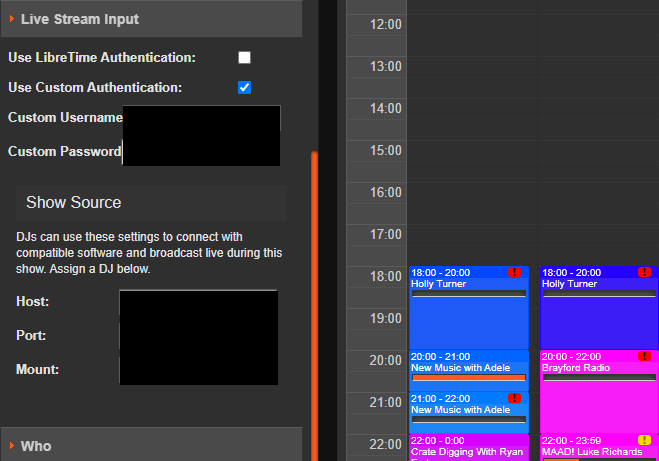
You can even add images, set metadata for external players, auto-create podcasts from shows, and colour code in the scheduler so your admin team can easily see at a glance who’s broadcasting from which location. At Brayford Radio, we use four colours in our scheduler:
Blue – Feed coming from our main rented studio at the University
Pink – Feed coming from the built-in playout on Libretime (pre-recorded or VT’d show)
Orange – Feed coming from an external source outside of our control, such as the syndicated SRA Chart Show feed that we play out on Sundays from 2PM.
Green – Feed set to be received directly from one of our presenters. (Live from home)
At the end of each block on the schedule, the software confirms who’s supposed to be broadcasting and adjusts the username and password for the stream connection details accordingly. This is perfect for when your team needs to connect to broadcast from home, or you need your studio PC’s to get kicked off at certain times.
Let me know if any of this was helpful and let me know how your station is running! 😀